Detection chains correlate individual security events into multi-stage attack campaigns, connecting isolated alerts into a unified attack sequence.
A single-event detection fires on one event, such as a failed admin login. A detection chain identifies a threat from a sequence of related events. Attacks typically unfold in stages; an attacker gains access, escalates privileges, then moves laterally to other systems. Each step can seem unrelated on its own, but a detection chain connects the event definitions that detect each step, so Graylog recognizes them as one attack and raises the risk score.
Each chain is modeled on a known attack campaign, often tied to a threat actor such as a ransomware group or an advanced persistent threat (APT). Chains are developed in partnership with TruKno and delivered through Graylog Illuminate. Graylog maintains chain definitions and updates them through Illuminate content releases. Detection chains are disabled by default; you enable only the chains relevant to your environment.
This article explains how to enable and view detection chains, track their activity, and understand how chain activity affects risk scores.
Prerequisites
Before proceeding, ensure that the following prerequisites are met:
-
Graylog 7.2 or higher.
-
A Graylog Security license.
-
The Windows Detection Chains Illuminate content pack is enabled.
-
Each chain’s required log sources are ingested and parsed by the matching Illuminate processing pack. Event definitions can’t match unparsed logs.
Highlights
The following highlights provide a summary of the key takeaways from this article:
-
The Detection Chains tab on the Alerts page lists every detection chain available to you.
-
Select Enable Chain to turn on all of a chain's event definitions.
-
Detection chains are delivered and maintained through Illuminate. You can view chains and enable their event definitions, but you can't create, edit, or delete chains.
-
Detection chain activity is a factor in event and asset risk scores.
Hint: If you had either of the previous Windows Detection Chains packs enabled, Graylog Illuminate can upgrade them automatically. After you upgrade to Graylog 7.2, the Illuminate page will show that updates are available for your enabled packs. View the details and click Update Packs. Your notifications, search filters, and enabled state will carry over automatically.
Enable a Detection Chain
When you first install the Detection Chains spotlight, the event definitions in a detection chain are disabled so a chain doesn't surface events until you enable it. Enabling a detection chain turns on every event definition it's built from, instead of requiring you to enable them one at a time. To enable a chain:
-
Navigate to Alerts > Detection Chains
-
On the Detection Chains tab, find the chain you want to enable.
-
Select Enable Chain in that chain's row.
When all of a chain's event definitions are enabled, the Event Definitions column shows them all as enabled and the button changes from Enable Chain to All Enabled.
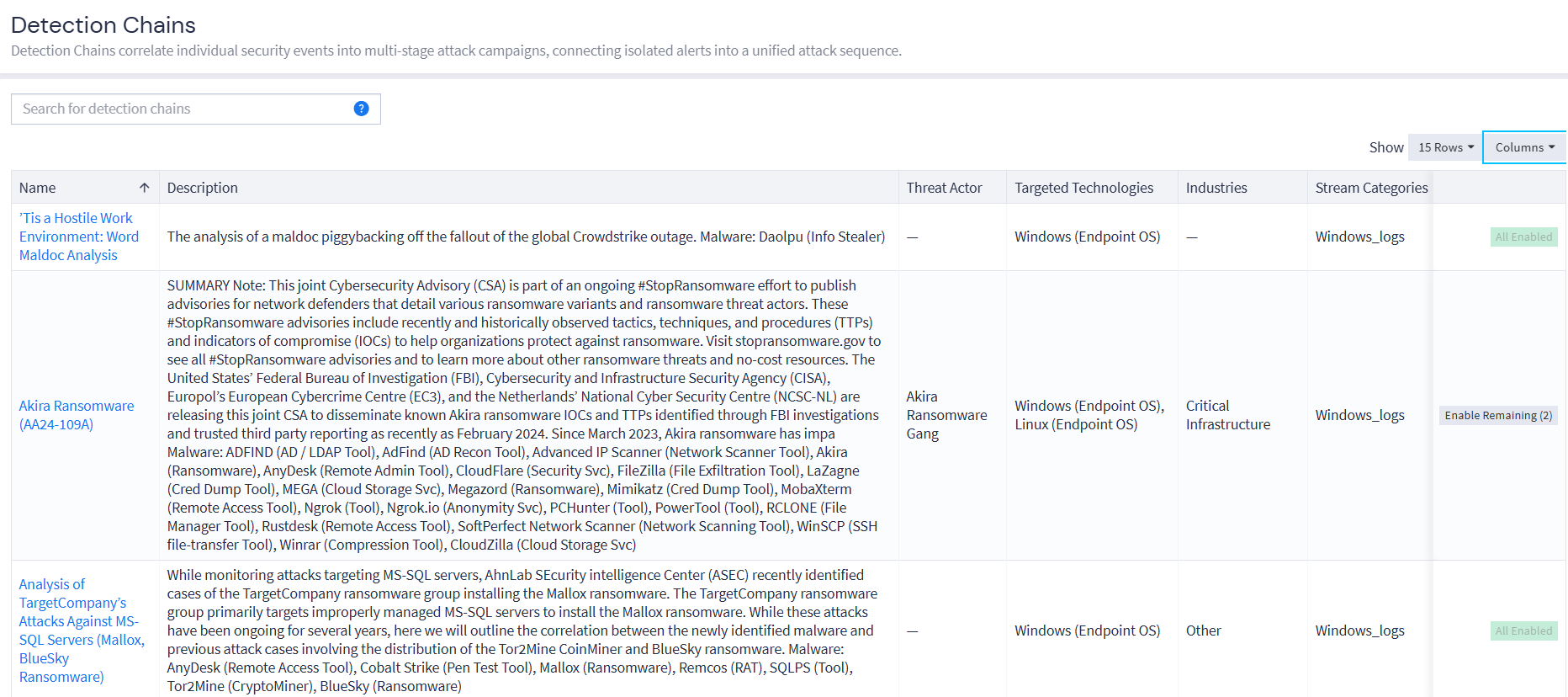
Once enabled, a chain's event definitions are managed the same way as any other. You need edit permission on each event definition in the chain in order to manage them. See Manage Event Definitions.
View Detection Chains
To view the detection chains available to you:
-
Go to Alerts and select the Detection Chains tab.
-
Select a chain to expand it and view its details.
Each detection chain includes the following fields. By default, the list shows the Name, Threat Actor, Targeted Technologies, and Event Definitions columns. You can add the other fields as columns.
| Field | Description |
|---|---|
| Name | The chain's name, usually the title of the threat intelligence report the chain is based on, for example Akira Ransomware (AA24-109A). Select the name to expand the chain. |
| Description | A summary of the attack campaign the chain detects and the attack stages it covers. |
| Threat Actor | The threat actor or group associated with the campaign, when known, for example Akira, APT28, or Scattered Spider. |
| Targeted Technologies | The technologies the attack targets, for example Windows, Linux, or Android. |
| Industries | The industries the chain is relevant to, for example Education or Government. |
| Stream Categories | The stream categories the chain's event definitions typically originate from, for example windows_logs. Use this to check that you're collecting the log data the chain needs. |
| Event Definitions | How many of the chain's event definitions are enabled, out of the total, for example 3 / 3 enabled. Expand the chain to see each event definition and its status. |
Hint: Check the Targeted Technologies, Industries, and Stream Categories fields before enabling a chain. They help you decide whether an attack campaign is relevant to your environment, whether you collect the log data the chain needs, and whether it's worth the additional event volume.
Track Detection Chain Activity
When you expand a chain, each rule under Detection Chain Rules shows whether it's enabled and whether it has been seen in the detection window. Together with the associated events count, this gives you a picture of how much of an attack campaign has been observed in your environment.
Chain activity also appears on the Alerts pages:
-
On the Alerts list, a Detection Chain badge appears on events that belong to a detection chain.
-
When you select an alert to expand it, select the detection chain name to view the chain's details. Fired events are highlighted, and events not yet detected are grayed out.
Use the expanded chain view to confirm that all relevant event definitions in a chain are enabled. If one event from a chain has fired, enabling the rest of the chain gives you the best coverage and the most accurate risk score.
To investigate an active chain further, expand it and select Add events to an investigation.
How Detection Chains Affect Risk Scores
Every event in Graylog has a base risk score. When an event comes from an event definition that belongs to a detection chain, Graylog adds an amplification value to that base score. The more of a chain's event definitions that have fired, the larger the amplification. A single event from a chain gets a modest increase, while an event from a chain that has been mostly observed gets a large one.
Amplification happens automatically once a chain's event definitions are enabled. There's nothing else to configure.
Keep the following in mind:
-
High-risk alerts surface: Based on chain activity, related events move into the high-risk range shown in red on the Alerts list. Sort by risk score to bring them to the top.
-
Asset risk scores rise: Asset risk scores are calculated from the risk scores of related events, so chain activity also raises the risk score of the affected assets.
-
Only recent activity counts: Graylog counts only the chain's event definitions that have fired within the detection window, which is 7 days by default. An event definition that hasn't fired again within the window drops out of the calculation, so later events from the chain get a smaller amplification. Risk scores of events that have already fired aren't recalculated. On self-managed deployments, you can change the window with the threat_campaign_expiration_interval setting in the server configuration file, for example threat_campaign_expiration_interval = 14d.
-
Shared event definitions use the highest value: An event definition can belong to more than one chain. When it does, Graylog applies the highest amplification from any of those chains.
For details on how base risk scores are calculated, see Risk Scoring.
Further Reading
Explore the following additional resources and recommended readings to expand your knowledge on related topics: