How to Search Your Log Data
Search is fundamental in Graylog, whether part of an investigation, responding to an immediate alert, or as part of routine maintenance and research in your environment. Mastering search techniques and logic can help you quickly identify and solve a variety of problems.
In this topic, we introduce the concepts of search, search syntax, and navigating search results by guiding you through real-world examples. While your goals and environment will be different, these techniques will give you a foundation to utilize search features.
For detailed instruction related to search techniques, see:
Scenario 1: Brute Force Attack
Sally, a security analyst, receives an alert that a brute force attack is underway or has occurred in her environment and she needs to determine the details.
Cause
You might suspect a brute force attack under the following conditions:
-
The network receives a high volume of failed logon attempts in a short time span.
-
Users report unexpected account lockout due to failed attempts to access their accounts with incorrect credentials.
-
Logon attempts occur from unusual geographic locations or at unusual times.
Use Search to Uncover the Attack
Sally is alerted to the possible problem so she follows the steps below to investigate.
-
Sally checks activity on the login controller with the following search query:
Copycontroller:LoginController -
Sally adjusts the search time frame to make sure search results include all the data for the reported event.
-
Select the down arrow on the time frame selector.
-
Select 30 minutes. Since in this scenario, the incident was first reported about 15 minutes ago, Sally wants to ensure that the data set searched includes the entire incident plus some buffer time.
To learn more, see Time Frame Selector.
-
-
Sally looks for elevated
POSTactivity. If a brute force attack has occurred, Sally knows to expect a spike inPOSTactivity on the login controller.-
Expand one of the logs in the results.
-
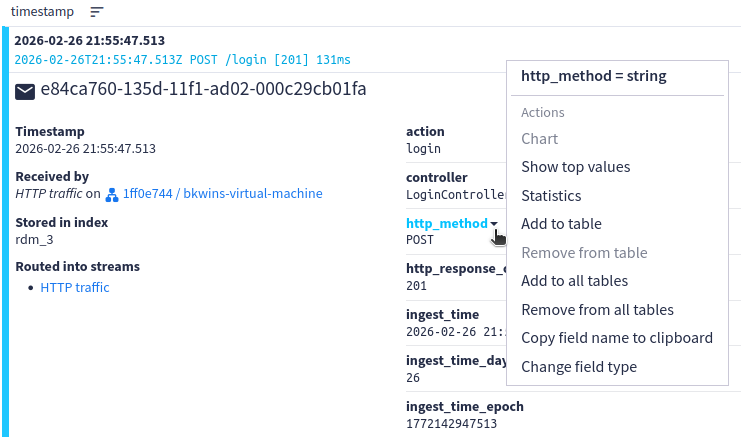
Hover over the http_method field, then select the down arrow that appears.
-
Select Show top values from the pop-up menu.
A new widget is placed below the results list that shows all the HTTP methods in the results with the number of occurrences and overall percentage of each. Sally finds an elevated count for
POSTresults, indicating a brute force attack has likely occurred. -
-
Sally narrows the results to see only
POSTactivity by adding to the query:Copycontroller:LoginController AND http_method:POSTHint: Sally can add this information to the query from within the current search results: Expand one of the results that has aPOSTmethod. Hover overPOSTunder the http_method field, then select the down arrow that appears. Select Add to query from the pop-up menu. The correct query syntax is added to the existing query, joined byAND, and the new search runs automatically. -
Sally determines where this
POSTtraffic is coming from.-
Expand one of the logs in the results.
-
Hover over the source field, then select the down arrow that appears.
-
Select Show top values from the pop-up menu. A new widget is placed below the results that shows all the sources for
POSTmethods in the results with the number of occurrences and overall percentage of each.
Sally reviews this table for suspicious IP addresses. By using an external web search in an IP address locator, she determines that many POST commands originate from geographic locations other than where her users are located.
Hint: Sally could enable geolocation features in Graylog to surface this information through thesource_geo_countryfield. For details, see Graylog Geolocation: Mapping Your Log Data. -
-
Sally adds suspicious sources to the query to further narrow the results:
Copycontroller:LoginController AND http_method:POST AND source:example.orgNote that this example uses
example.orgas the source; however, you would replace that value in your search with whatever suspicious source you found in the previous step.Hint: Sally can add this information to the query from within the current search results: Expand one of the results that is from a source you want to add. Hover over a source value you want to add under the source field, then select the down arrow that appears. Select Add to query from the pop-up menu. The correct query syntax is added to the existing query, joined byAND, and the new search runs automatically. -
Sally excludes results that authenticated successfully. Although it is possible an attacker successfully authenticated, she is able to focus on the attacker by removing legitimate users who correctly authenticated.
Copycontroller:LoginController AND http_method:POST AND source:192.168.4.141 AND NOT http_response_code:[200 TO 299]Hint: To add this exclusion from within the search results, expand a result with a successful response code. Hover over the response code value under the http_response_code field, select the down arrow that appears, then select Exclude from results. Graylog adds the correctAND NOTsyntax to the query automatically.
By following these steps in search, Sally is able to confirm the attack. As a next step, she might need to determine whether the attacker was able to successfully access the network and compromise any legitimate users.
Scenario 2: Account Takeover and Privilege Escalation
Sally, a security analyst, receives a Graylog alert that a new user has been added to the Domain Admins group.
Cause
You might suspect an account takeover has occurred under the following conditions:
-
A user is unexpectedly added to a privileged group, such as Domain Admins.
-
A brute force attack resulted in a successful logon for the attacker.
-
Regular users or trusted accounts display unusual or suspicious behavior.
-
A user accesses or attempts to access restricted resources.
-
A user is logged on multiple times simultaneously from different locations.
Use Search to Identify the User and Trace the Suspicious Activity
Sally is alerted to the possible problem so she follows the steps below to investigate.
-
Sally runs search queries to uncover the user who was added to the Domain Admins group.
The logs coming into the environment are being normalized to the GIM schema with Illuminate content packs. Sally takes advantage of these categories and searches the Identity and Access Management (IAM) category, which covers events where groups are created or modified:
Copygim_event_category:iamThe results from this query show a lot of activity around Active Directory domain controllers, with users locked out, user passwords changed, users added to privileged groups, and so on. Most of these results show legitimate, expected activity.
Hint: Sally needs to ensure the search query is run for the correct time frame by adjusting the time frame selector, as in scenario 1. If the exact time of the incident is not known, she might need to experiment to ensure the results include relevant data.Sally scans the search query results and notices an event ID 4728, which is the ID used for a user account being added to a security-enabled group. She checks the details for this result and finds the group name for this message is Domain Admins.
Note that the GIM schema maps Windows Event IDs to the
event_codefield.Hint: Sally can add theevent_codefield as a column in the display so that she can see them without opening the detail of each event: Click the Edit icon at the top right of the results. In the new pane on the left, search for event_code or scroll through the list to select this field. (Optional) Drag the fields into the order they should appear in the results table. Select Update widget. After this field is added to the view, the table can be sorted by this column to group all related events together.Sally narrows the results by adding the event ID and group name to the query:
Copygim_event_category:iam AND event_code:4728 AND "Domain Admins"By reviewing the shorter results set, Sally can see that a user, jsmith, added the new member, called "helpdeskupdate" to the Domain Admins group.
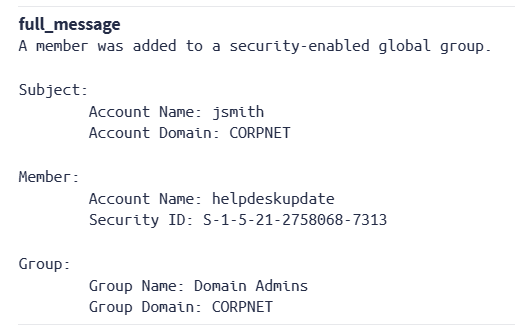
The user jsmith is a legitimate employee. However, they should not have permission to modify the Domain Admins group.
-
Sally verifies that this activity is suspicious.
Copyevent_code:4728 AND target_user_name:helpdeskupdateReviewing the details, she sees that the account was created just 35 seconds before it was added to Domain Admins. The
DisplayNamefield is set to Helpdesk Update Service, which could be designed to blend with existing help desk accounts.Sally concludes that her user, jsmith, has likely been compromised.
-
Sally performs a query to investigate the entire takeover chain:
Copytarget_user_name:"helpdeskupdate" OR source_user_name:"jsmith" OR user_name:("helpdeskupdate" OR "jsmith")To view the events sequentially, Sally clicks the arrow beside the timestamp column header to sort either ascending or descending.
The full chain of events is revealed in the results. The most significant events are shown in the following table:
Time Event ID What Happened T+0s
4648
User jsmith used
runasto enter credentials (username/password) different from their own.T+1s
4624
jsmith successfully logs on (authenticates) to the network.
T+31s
4720
jsmith created a new account named helpdeskupdate.
T+33s
4722 The helpdeskupdate account is enabled. T+39s 4728 The helpdeskupdate user is added to the Domain Admins group. T+41s 4732 The helpdeskupdate user is added to the local Administrators group. T+51s 4672 The helpdeskupdate user is assigned Admin privileges on next logon. T+66s 4697 The helpdeskupdate user installs WindowsUpdateHelper service on the system. T+71s 4698 The helpdeskupdate user creates a scheduled task on the system. -
Sally inspects the events where the helpdeskupdate user installed the service.
Because the final two events in the above sequence are the most troubling (a service is installed, then a scheduled task is created so that the service restarts even if it is stopped), she looks at the details for these events.
For event ID 4697, she discovers that the newly created user helpdeskupdate installed the service. It is installed on the local system, and it is set to start automatically when the system boots (Service Start Type: 2).
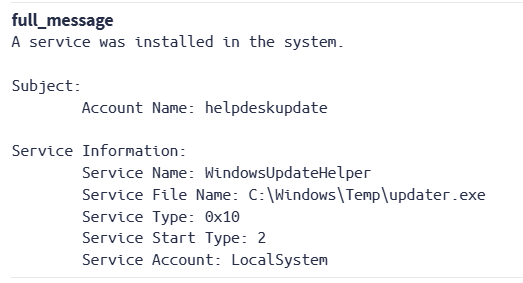
This action appears to create a backdoor, potentially allowing attackers persistent access while bypassing authentication.
Next, Sally reviews event ID 4698.
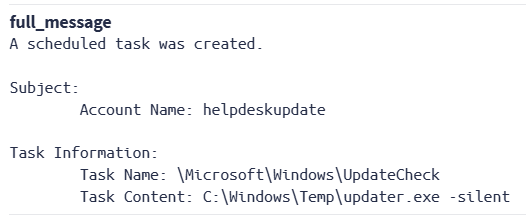
Again, the helpdeskupdate user performed this action, which created a scheduled task,
\Microsoft\Windows\UpdateCheck, runningupdater.exe -silent.Even if Sally kills the service, the scheduled task will restart it. This task must be removed as well.
-
Sally investigates how user jsmith was initially compromised. She queries:
Copyevent_code:4648 AND source_user_name:"jsmith"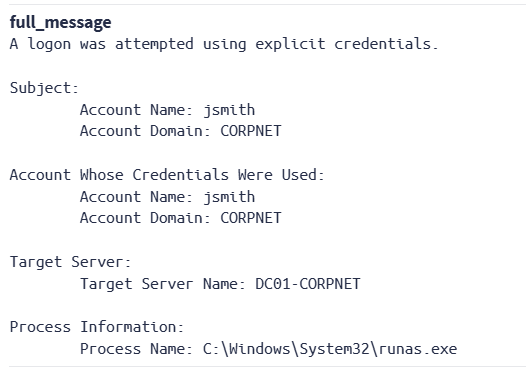
The results show that the attacker used
runasto authenticate with jsmith's stolen credentials, then targeted the domain controller. The results also show the source IP address, which could be useful in further investigation of the attacker.
By using search and search results, Sally is able to determine the chain of events that led to her user being compromised and see what actions the attacker took in the environment. As a next step, she will need to close the attacker's backdoor by removing any processes installed by the attacker and verify that no additional unauthorized changes were made.
Next Steps
Search actions can always be part of a larger workflow in Graylog. For instance, either of the scenarios above could be triggered by an alert generated from an event definition set to watch for specific network activity. The result of the search activity might lead you to develop events in your environment to alert you of similar problems in the future.
When you find you are repeating searches in additional investigations, consider creating saved searches and search filters to easily reuse common queries. These assets are also shareable among users and teams, based on Graylog's permissions model.
In addition, keep in mind that any search results can be added to an investigation by using the Investigations button at the top of the results detail. You can export the entire results set to CSV, JSON, and other formats using the More Actions (three dots) menu at the top right of the Search page if you want to perform additional review or analysis. You can also use this menu to export query results to a dashboard to perform data visualization.
Further Reading
Explore the following additional resources and recommended readings to expand your knowledge on related topics: