Search Controls
Graylog provides several search controls that affect how searches are executed. These controls are separate from the search queries themselves. You can set or apply search controls to affect your search query results.
This article reviews the search controls available on the Search page and provides guidance for their use.
Prerequisites
Before proceeding, ensure that the following prerequisites are met:
-
Search filters require a Graylog Enterprise license.
-
Stream categories require a Graylog Enterprise license.
Highlights
The following highlights provide a summary of the key takeaways from this article:
-
Search controls shape how Graylog queries are scoped and executed by determining what data is searched, how results are filtered, and how the search experience can be navigated and refined.
-
The Time Frame Selector defines search scope by setting time ranges to control which messages are searched, making time range selection critical to effective investigations.
-
Time Frame Scrolling extends visibility by moving the time window forward or backward without rewriting a query, useful for tracking trends or locating events near the original range.
-
Search Filters let you save and reuse common query segments across searches, dashboards, and event definitions for more modular, efficient workflows. This feature requires an Enterprise license.
Time Frame Selector Explained
The Time Frame Selector lets you set the time range of the search. A time range defines the specific window of time where Graylog looks for matching messages. This control ensures your search includes the relevant data for any significant events you want to investigate.
The selector provides three range selection types:
-
Relative: Searches for messages within a time range relative to the current time. This type provides predefined relative ranges to support common search scenarios.
-
Absolute: Searches a range defined by fixed start and end timestamps that never change.
-
Keyword: Searches time ranges based on commonly used natural‑language expressions, such as Today, This week, or last 90 days.
Time range selection critically impacts search results by limiting scope to specified windows. Events outside the selected range are excluded. Choosing appropriate time ranges is essential for successful investigations.
For complete information about using this control, see Time Frame Selector.
Time Frame Selector Example
Sally, a security analyst, is investigating a spike in failed authentication attempts that her team noticed earlier in the day. She knows the spike occurred sometime between 9:00 AM and 11:00 AM, so a relative or keyword range will not give her the precision she needs.
Before entering her query, she sets the time range:
-
Sally clicks the clock icon in the upper left corner of the Search page.
-
She selects Absolute.
-
Using the Calendar option, she sets the From date and time to 9:00:00 and the Until date and time to 11:00:00.
-
She clicks Update time range.
When she enters her query, the search returns only the log messages from that two-hour window, ensuring the data from the traffic spike is included.
Time Frame Scrolling Explained
After you complete a query, you can use the Show next or Show previous arrows to move the time range. This lets you easily view data just outside the defined time range, which is useful if data you expected didn't appear in the original results or if you want to view how the data trended before or after the targeted query.
The Show next and Show previous buttons are found at either side of the displayed time interval, as shown in the screen shot below. Note that regardless of what method you used to define the time interval, when you select one of these buttons, the displayed time interval switches to show a date/time string, although the interval remains the same.
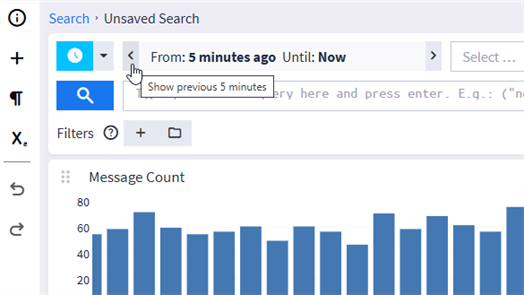
When you select one of these arrows, the results scroll forward or backward based on the defined time interval. For example, if the defined time range is five minutes, clicking the Show next arrow displays the next five minutes of data matching the query. Likewise, if the defined range were two hours, clicking Show previous would display the two hours of matching data before the current results.
For information on how you set the original time range, see Time Frame Selector.
Time Frame Scrolling Example
Sally, a security analyst, runs a query for failed login attempts scoped to a 30-minute window. She finds only a handful of results, which are not enough to confirm a pattern. She suspects the activity might have started just before her defined range.
Rather than rewriting the query with a new time range, Sally clicks the Show previous arrow beside the displayed time interval. Graylog shifts the window back by 30 minutes and reruns the query automatically.
The new results show a clear cluster of failures that preceded her original range, giving her the broader context she needed to confirm the attack timeline.
Search Filters Explained
Search filters are reusable query snippets that you can save and apply to other queries as necessary. Use this feature for frequently repeated query segments as well as to make temporary modifications to an active query.
You can use search filters to save commonly repeated search phrases. For instance, you can create a source-based filter to exclude known false positives. Filters let you build modular searches, which can be used in areas such as dashboard widgets and event definitions.
For complete information about using this control, see Search Filters.
Search Filters Example
Marcus, an IT administrator in a cloud environment, wants an alert to trigger when the AWS root account is used to create, update, or delete a cloud resource. Because root accounts have unrestricted privileges, they should not be used for routine administrative tasks. This alert will help identify high-risk activity, potential credential compromise, or violations of security best practices related to privileged account usage.
The necessary query consists of two parts:
-
An action is performed by the root account:
Copyuser_type:Root AND NOT _exists_:user_name -
The action performed is create, update, or delete:
Copyevent_action:("create" OR "update" OR "delete")
Marcus knows that both query parts can be useful in other searches as well, so he first creates them as two separate search filters. Then, when he creates his event definition, he leaves the Search Query field blank but attaches both search filters.
With the two search filters joined by AND, the final query in the event definition would be interpreted as follows:
(event_action:("create" OR "update" OR "delete")) AND (user_type:Root AND NOT _exists_:user_name)
Streams and Stream Categories Explained
From the Search page, you can limit queries by specific streams and stream categories. These controls are above the query input line, next to the Time Frame Selector.
By default, queries search all streams that you have access to based on permissions and sharing settings. Use the Select streams dropdown to choose specific streams to focus your queries. The dropdown lists all streams to which you have access. Note that you can add multiple streams. After you add streams here, any queries you perform search only the selected streams until you clear the selection.
Stream categories are predefined tags used to group streams so that you can focus searches in relevant areas. If you use Graylog Illuminate, categories are assigned automatically when an Illuminate content pack that defines them is installed.
You can also assign categories to individual streams on the Streams page.
On the Search page, select a stream category from the dropdown to include all streams tagged with that category in your search query. The following stream categories are available by default: dns, firewalls, linux, network_traffic, security_core_endpoint, security_core_perimeter, webservers, and windows_logs.
OR logic. That is, matches from any selection appear in your results.
Select Search Undo/Redo
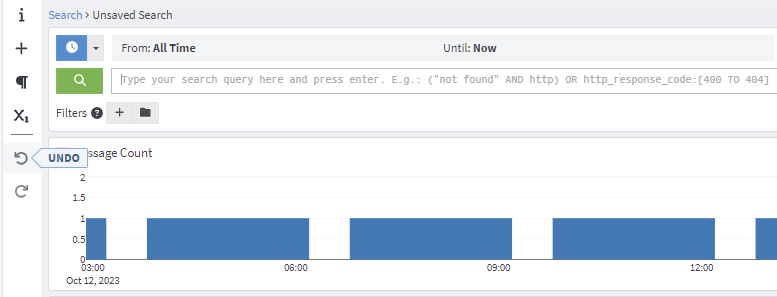
Use the search Undo or Redo features to go one step back or forward in search or dashboard views. The Undo and Redo buttons are in the left sidebar of your search page.
If you decide to resize a widget or rearrange a dashboard but are not happy with the outcome, you can revert to the previous state with the Undo button. You can experiment with various views without affecting the current dashboard.
Use Keyboard Shortcuts for Search
Graylog provides the following shortcuts to navigate the search page without using your mouse. The shortcuts can be performed only when the focus is not in the query field.
| Shortcut | Action |
|---|---|
shift + ?
|
Show available keyboard shortcuts. |
Ctrl + shift + z
|
Undo last action. |
Ctrl + shift + y
|
Redo last action. |
Ctrl + s
|
Save search. |
Ctrl + shift + s
|
Save search as. |
Ctrl + /
|
Show scratchpad. |
|
|
Opens the Quick Jump menu. |
shift + ? on any page in Graylog brings up a dialog box that lists available shortcuts for that page. The dialog box includes shortcuts specific for the page you are on, if any.
If your cursor is in the query entry field, the following keyboard shortcuts are available.
| Shortcut | Action |
|---|---|
|
|
Execute the search. |
|
|
Create a new line. |
|
|
Create search filter based on current query. |
|
|
Show suggestions. Displays query history if the input is empty. |
|
|
View search query history. |
Further Reading
Explore the following additional resources and recommended readings to expand your knowledge on related topics: