Geolocation
Graylog allows you to extract and visualize geolocation information from IP addresses in your logs. This topic explains how to configure the geolocation processor. Additionally, you'll learn how to create a map visualization with extracted geo-information.
Prerequisites
Before proceeding, ensure that the following prerequisites are met:
-
You must be a Graylog administrator to edit or configure the geolocation processor.
-
To use one of the supported cloud providers as a storage backend, you must have appropriate credentials to manage that provider.
Download and Store a Geolocation Database
To use geolocation features, you must download a geolocation database. Graylog supports both MaxMind and IPinfo databases.
Hint: Although these products have free offerings, you must create an account to download the databases. Visit their websites for details..
Next, choose where to store the geolocation database. If you use a local file system, the database must be stored on all servers running Graylog. This method requires manually updating those files any time the database needs to be updated.
You can also choose to store the database on cloud storage. Graylog supports:
-
Amazon S3
-
OVH Object Storage
-
SysEleven Object Storage
-
Google Cloud Storage (GCS)
-
Azure Blob Storage
When you configure the Geo-Location Processor, you enter your bucket or container URL for the path configuration value.
When you use cloud storage, a service runs every refresh interval to poll the files in the buckets. If those files have been updated since the last poll, new files are pulled down onto each Graylog node. This service relies on appropriate credentials for the cloud service.
The retrieved geolocation database files are stored in the Graylog data_dir directory under the geolocation subdirectory. To change where these files are stored, set geo_ip_processor_s3_download_location to the desired location on disk in your Graylog server configuration file.
For all storage types and locations, make sure you grant the correct permissions to the file so the user running Graylog can read the database.
Configure the Processor
Graylog ships with geolocation capabilities by default but additional configuration is still required. You need to configure Graylog to use the geolocation database to resolve IP addresses in your logs.
-
Navigate to System > Configurations.
-
Select Plugins > Geo-Location Processor, then click Edit configuration.
-
Select the Enable Geo-location processor check box.
-
Enter configuration details for your geolocation database:
Enforce default schema
Use this option to limit the fields that are processed for geolocation data. See Enforce Graylog Schema Option below for details. Enabled by default.
Select the GeoIP database vendor
Choose your geolocation database, either MaxMind or IPInfo.
Enter to path to your stored city database. This path can be on your local file system or a URL to a supported cloud provider.
Path to the ASN database
Enter to path to your stored ASN database. This path can be on your local file system or a URL to a supported cloud provider.
Database refresh interval
Set the interval at which the database files are checked for modifications and refreshed changes are detected on disk.
Pull files from cloud storage bucket
(Optional)
Select your storage backend if you are using a cloud provider. Each cloud storage provider has specific requirements to authenticate and connect with Graylog. See the sections below for your specific provider for additional information.
-
Select Update configuration to save the configuration.
Connect to Database Files in Amazon S3, OVH, or SysEleven
To connect to one of these backend storage types, follow these steps:
-
Create an Amazon S3 bucket. Follow AWS documentation on buckets to complete this process. Skip this step for OVH or SysEleven.
-
Configure authentication.For Amazon S3, this service relies on the default credentials provider chain for credentials to S3 buckets. Check the documentation from your chosen provider for details of setting up authentication in your environment.
Hint: If you use Amazon S3 as a storage backend for Graylog Data Lake, archiving, or warm tier storage, note that your authentication must be the same for all of these uses. Authentication for the storage backend does not use any configuration values you might have set in the Graylog AWS Plugin configuration settings.For OVH or SysEleven, set the following environment variables on the Graylog server:
-
AWS_ACCESS_KEY_ID -
AWS_SECRET_ACCESS_KEY -
AWS_REGION -
AWS_ENDPOINT_URL_S3(enter the full endpoint URL, includinghttps://)
-
-
Upload geolocation files to your S3 bucket. The cloud provider interface frequently offers a method to copy the path to the files, which you need for the next step.
-
Add the city and ASN paths for your database files to the configuration details in Graylog, as shown above.
Connect to Database Files in GCS
Before you can establish Google Cloud Storage (GCS) as a backend, you must complete setup on your Google Cloud account.
-
Create a GCS bucket. Follow Google's documentation on buckets to complete this process. Note the following:
-
To create a bucket, you must have the Storage Admin IAM role assigned for the project.
-
The bucket name must be globally unique, and you cannot change this name after the bucket is created. Make sure to note your bucket name as you need to provide it in the backend setup process in Graylog.
-
The default Standard storage class is recommended. However, depending on your use case, you might determine a different class is a better fit. Make sure that you understand cost implications with Google for each choice.
-
When setting access control and data protection and retention, be sure to follow your company guidelines and security best practices. Also, be aware that your choices can have cost implications from Google.
-
-
Create a Google Cloud service account. Follow Google's documentation on service accounts to complete this process. Set permissions for this account such that it can read, write, and delete from the bucket.
-
In Google Cloud, set up Application Default Credentials (ADC). Follow Google's documentation on ADC to complete this process. Depending on your environment, the steps might be as follows:
-
Download your service account key file from the Google Cloud console.
-
On every Graylog node, set the
GOOGLE_APPLICATION_CREDENTIALSenvironment variable to point to the key file with a command like the following:Copyexport GOOGLE_APPLICATION_CREDENTIALS=/path/to/your/key.jsonBe sure to update the path in the above command to the location for your service account key file.
-
To configure ADC with your Google account, run the following command in the Google Cloud CLI:
Copygcloud auth application-default login
Hint: You must complete ADC setup on all Graylog nodes in your environment! Google provides instructions for setting up ADC on multiple environment types, including development, on-premises, cloud, and containerized. Use the instructions that match your Graylog deployment. -
-
Upload geolocation files to your GCS bucket. Typically, the cloud provider interface offers a method to copy the path to the files, which you need for the next step.
-
Add the city and ASN paths for your database files to the configuration details in Graylog, as shown above.
Connect to Database Files in Azure Blob
Enter the following information to complete Azure Blob storage configuration:
|
Azure Blob Container Name |
Enter your Azure Blob container name where the GeoIP database is stored. |
|
Azure Endpoint URL |
Enter the URL for the Azure Blob endpoint. This value is required only if you want to override the default endpoint. |
|
Azure account name |
Enter the name of your Azure storage account. |
|
Azure account key |
Enter the account key for your Azure storage account. |
Enforce Graylog Schema Option
When you configure the geolocation processor, the Enforce default schema option is selected by default. If you disable schema enforcement, all IP address fields that are not reserved IP addresses are processed and have the following fields added with the field name as a prefix:
-
_geolocation -
_country_code -
_city_name
An example of the generated fields for the source_ip field might read:
-
source_ip_city_name: Vienna -
source_ip_country_code: AT -
source_ip_geolocation: 48.20849, 16.37208
If schema enforcement is enabled, only the following GIM schema fields that are not reserved IP addresses are processed:
-
destination_ip -
destination_nat_ip -
event_observer_ip -
host_ip -
network_forwarded_ip -
source_ip -
source_nat_ip
An example of the generated fields for the source_ip field might read:
-
source_as_number: AS1853 -
source_as_organization: ACONET -
source_geo_city: Vienna -
source_geo_coordinates: 48.20849, 16.37208 -
source_geo_country_iso: AT -
source_geo_name: Vienna, AT -
source_geo_region: Vienna -
source_go_timezome: Europe/Vienna
Illuminate and Geolocation
Hint: Geolocation configuration is available with Graylog Open. Illuminate is not required to use geolocation data.
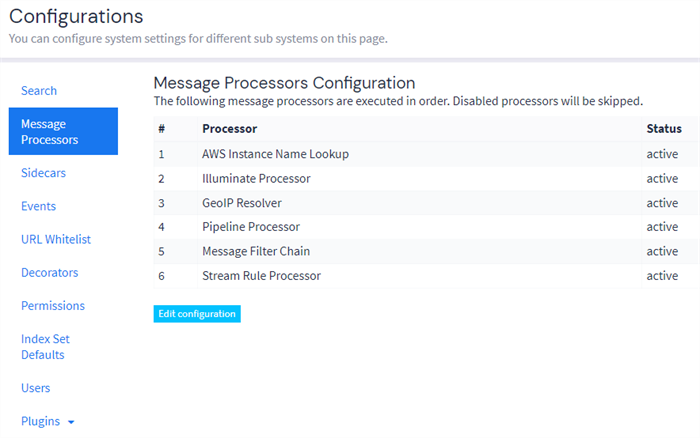
If you want to use geolocation data with Illuminate content, you must ensure that the Illuminate processor runs before the GeoIP Resolver in Message Processors configuration. Note that this order should be the default.
To check the configuration in your environment:
-
Navigate to System > Configurations.
-
Select Message Processors, then confirm the order in the table.
If you need to change the order:
-
Select Edit configuration.
-
Use drag and drop to reorder the items in the list as required.
-
Select Update configuration.
-
Visualize Geolocations in a Map
Graylog can display maps from geolocation stored in any field, as long as the geo-points are using the latitude,longitude format.
Display a Map in the Search Results Page
On any search result page, you can expand the field you want to use to draw a map in the search sidebar. Click the Create (+) in the left sidebar, then select Aggregation under the Generic menu.
An empty aggregation widget opens, ready for you to enter your information. Under Visualization, select World Map as the Type. You then see a map with all the different points stored in that field.
Click Update preview to see your map and make any changes before you click Update widget.
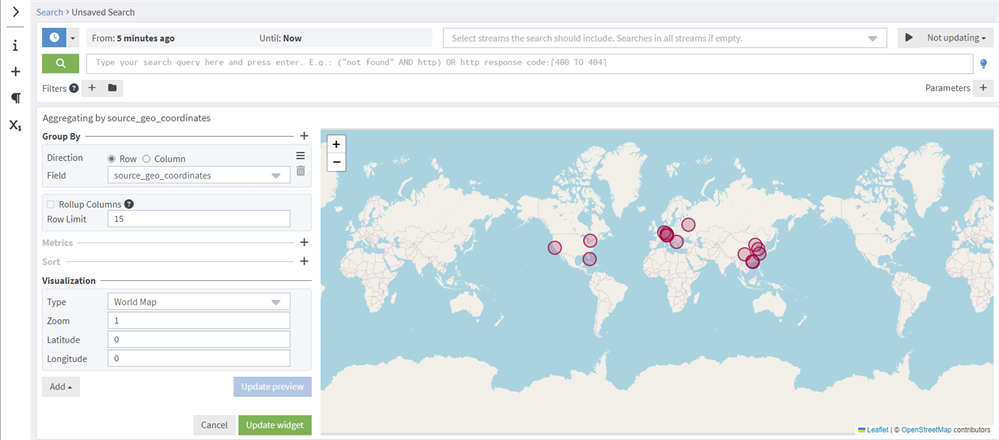
Hint: Adding a metric affects the size of the dot on the map. If there is no metric defined, every dot has the same radius.
For additional fields used in Graylog related to different sources of geo coordinates, view the Graylog Schema.
Add a Map to a Dashboard
You can add the map visualization into any dashboards as you do with other widgets. When you display a map in the search result page:
-
Click the three dots in the upper right corner.
-
Select Export to Dashboard.
You can then rename, edit ,and save the new dashboard. See Dashboards for details about creating and editing dashboards.
Further Reading
Explore the following additional resources and recommended readings to expand your knowledge on related topics: