Cron Scheduling for Event Definitions
Cron scheduling automates the process of running an event, making it possible to run events periodically at a fixed time, date, or other interval instead of continuously at a fixed search interval. This article explains how cron expressions work and how to add cron scheduling to an event definition.
Prerequisites
Before proceeding, ensure that the following prerequisites are met:
-
You are creating or editing an event definition.
Cron Expression Syntax
With cron scheduling, you can define a more precise window of time that makes sense to monitor. For example, you can schedule your event to alert you on logins that happen at an unusual time, like outside work hours. Or you could choose to run a costly event only during nighttime hours, when CPU usage is low.
Cron scheduling is determined by cron expressions. A cron expression is a string of fields separated by white space. Graylog uses Quartz cron syntax, for example:
<second> <minute> <hour> <day of month> <month> <day of week> <year>
Hint: Quartz cron expressions may have six to seven fields. The seventh field <year> is optional.
For example, let's say you want to run an event every Monday at 8:05 AM. You enter 8 in the hour field, 5 in the minute field, and MON as the day of the week. So the expression is:
0 5 8 ? * MON *
The <day of month> field in this example is not relevant and is therefore represented with a question mark (?). Other fields that are marked with an asterisk can take any value.
There are several special characters used in cron expressions. Here are some of the most common ones:
-
*: An asterisk can be used for fields that can take any value. For example, if you want to run an event that starts at 12 AM, enter0 0 0 * * * *. The first three zeros mark thesecond,minute, andhourthat the event will run. The asterisks in the remaining fields mean that these fields accept all values. -
?: Denotes that the field value is irrelevant. Mainly used for days of the week. If you want to run an event on any day of the week, you may use an expression such as* 5 8 * * ? *. -
/: A forward slash is used to specify ranges. For example,M/Fdenotes Monday through Friday.
See the Cron Trigger Tutorial for more information on special characters and creating cron expressions.
| Cron Expression | Description |
|---|---|
0 0 2 * * *
|
At 2:00 AM. |
0 0 * * * *
|
Every hour. |
0 0 9 1-7 * *
|
The first 7 days of every month at 9 AM. |
5/10 * * * *
|
Every 10 minutes, starting at 5 minutes past the hour. |
0 1/5 * 7 * * *
|
Every 5 minutes, starting at 1 minute past the hour, on day 7 of the month. |
0 0 7 1 1 ? *
|
Every first day of January, starting at 7 AM. |
Add Cron Scheduling to an Event Definition
To add cron scheduling to an event definition:
-
Navigate to Alerts > Event Definition.
-
Click the Create event definition button or edit an existing event definition.
-
Follow the event definition wizard steps.
-
Select the Use Cron Scheduling checkbox.
-
Enter the desired cron expression in the Cron Expression box.
-
Select a relevant timezone.
Your cron expression is added to the event definition and can be viewed under Event Details.
The following image shows a cron expression that schedules an event to run 15 minutes past the hour, every thirty minutes:
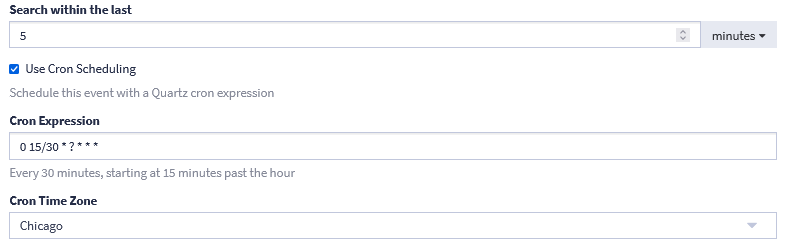
Hint: As seen in the image, a description of the expression you enter appears below the Cron Expression field. If the input is incorrect, you receive a warning.
Further Reading
Explore the following additional resources and recommended readings to expand your knowledge on related topics: