Search parameters let you replace fixed values in a query with reusable placeholders. Instead of rewriting the same search for different users, IP addresses, environments, or other variable inputs, you can define a parameter once and supply the value at runtime. Parameters can be used in saved searches, dashboards, and other search contexts where you want to reuse the same query structure with different inputs.
In this article, we will discuss how to declare parameters , how default values work, and how to resolve common parameter-related issues.
Declare a Parameter
Parameters can be added wherever you want to perform a search, such as in saved searches, dashboards, or the main search page. To create a parameter:
-
Click the + icon in the sidebar section of the search interface and select Parameter.
-
Fill out the required values in the resulting modal window:
Name: The name of the placeholder you will use inside your query. It represents the value.
Title: The title displayed beside the parameter declaration input.
Description: Use the title to describe the parameter's purpose, and use the description to provide a more detailed explanation.
Type: Defines how the parameter behaves and where its values originate during a search. The following options are available:
-
Generic: A free-form parameter option. Type any value, and it is injected wherever $parameterName$ is used in the query.
-
Dropdown: Converts the parameter into a selectable list of predefined options. These options can be static values or pulled from a specific field.
-
Lookup Table: Dynamically populates parameter values from a Graylog lookup table.
Default: The default value for the parameter.
-
-
After clicking Submit, you can use the parameter in your query with the syntax $parameterName$.
Default Values Explained
When using parameters, you must assign a value to each parameter. If any parameter is left undefined, the query is invalid and cannot be executed.
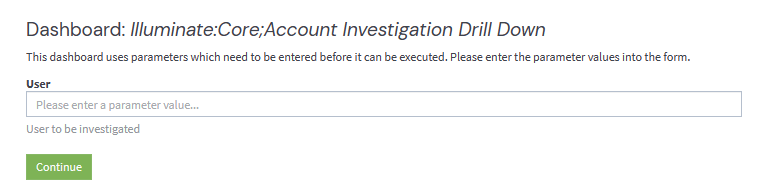
To ensure the search always runs, configure default values for parameters. If you open a dashboard or saved search without default parameter values, Graylog displays a parameter input dialog. You must provide values before the search can run.
Troubleshooting and Common Issues
The following section outlines troubleshooting steps for common issues to assist you in resolving potential challenges you may encounter.
Issue: Undeclared Parameters
The most common issue occurs when you reference a parameter in your search query that has not been declared. If you use $parameterName$ in your query without first creating that parameter through the sidebar Parameter section, Graylog displays an error warning.
This error prevents the search from executing until you either declare the parameter or remove the reference from your query.
Solution: Declare the Parameter Before Use
Always declare parameters before using them in queries. Open the sidebar, select Parameter, and configure the parameter with its name, title, type, and optional default value before referencing it with the $parameterName$ syntax.
Issue: Missing Required Parameter Values
Parameters require values to execute searches successfully. When you open a dashboard or saved search that uses parameters without default values configured, Graylog displays a parameter input dialog requiring you to enter values before the search can proceed.
If you attempt to execute a query with empty parameter values, the search will fail because the query becomes malformed.
Solution: Configure Default Parameter Values
Configure default values for parameters during creation to ensure searches remain executable without manual intervention. Default values let dashboards and saved searches run immediately upon opening, with users able to modify parameter values as needed.
Further Reading
Explore the following additional resources and recommended readings to expand your knowledge on related topics: