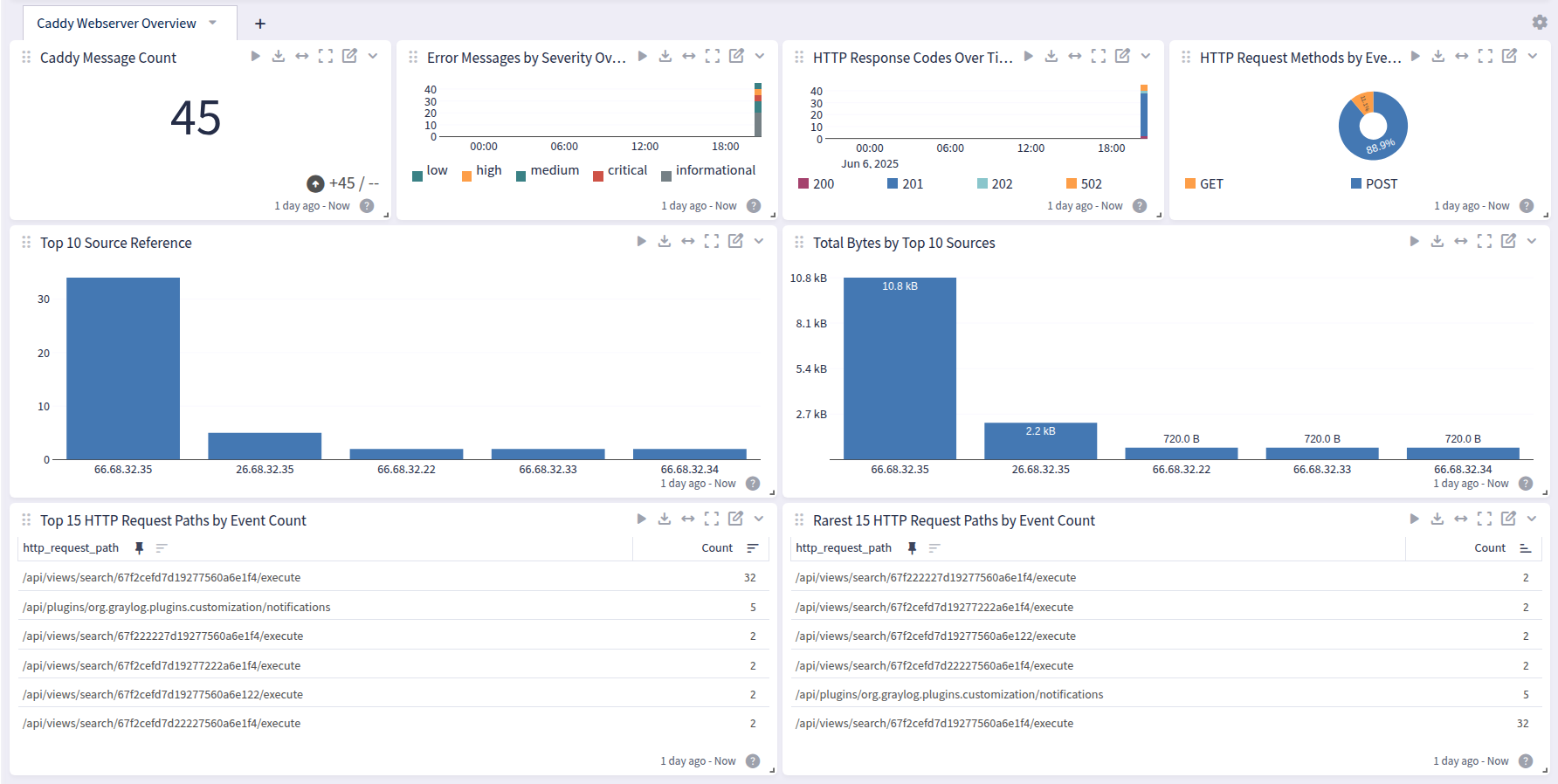
This content pack is designed for Caddy web server running on Ubuntu systems. It parses Caddy web server access logs.
Supported Versions
-
Caddy web server version 2.7.x
Requirements
-
The supported log delivery is via Filebeat with Graylog Sidecar.
-
The pack only supports Ubuntu and Linux versions with the same path and file structure.
-
The pack only supports the standard log folder for Ubuntu.
Stream Configuration
This technology pack includes 1 stream:
- "Illuminate:Caddy Webserver Messages"
Index Set Configuration
This technology pack includes 1 index set definition:
- "Caddy Webserver Logs"
Input via Filebeat and Graylog Sidecar
Please use the official Graylog Sidecar documentation to configure your Graylog server and your client(s).
Create an input and an API key and set up Graylog Sidecar.
Add your client(s), e.g. web server.
Hint: It is possible to run the Caddy web server
and Graylog on the same machine.
Graylog Server Settings
Create a global Beats input in Graylog.
Create a Graylog REST API access token and save it.
Create a (Linux) filebeat configuration under Sidercar > Configuration with a Filebeat on Linux collector.
Configure the file and add:
The correct IP address (Graylog server) under
hosts.The log source configured to the desired value and a field
event_source_productwith the valuecaddy_webserver.This path setting pulls all logs in the
- /var/log/caddy/*folder. Adjust the Caddy web server configuration file to store the logs locally and choose the required path, if necessary.
Copyfilebeat.inputs:
- input_type: log
paths:
- /var/log/caddy/*
type: filestream
fields_under_root: true
fields:
event_source_product: caddy_webserverWarning: There must be two spaces in front ofevent_source_productand- /var....Save the configuration to complete setup.
Configure a Client with Filebeat and Graylog Sidecar
Install Sidecar on the remote machine.
Copywget
https://packages.graylog2.org/repo/packages/graylog-sidecar-repository_1-5_all.deb
sudo dpkg -i graylog-sidecar-repository_1-5_all.deb
sudo apt-get update && sudo apt-get install graylog-sidecarEdit the
/etc/graylog/sidecar/sidecar.ymlfile and configure:server_urlGraylogServerIPserver_api_token:Your API token
Copysudo gedit /etc/graylog/sidecar/sidecar.yml
server_url: "http://192.168.122.52:9000/api/"
server_api_token: "65ol7edseo24mub8o7pu86h2rsr8j9fjjpimtrm9nrpbjso7cnv"Install, enable, and verify the Sidecar service.
Copysudo graylog-sidecar -service install
sudo systemctl enable graylog-sidecar
sudo systemctl start graylog-sidecar
sudo systemctl status graylog-sidecarInstall Filebeat according to the documentation. Or, here is the download link for the OSS version.
If you install it manually, install it again under
/etc/filebeat.If you install it via
apt-get, then it is in the correct folder.
Example commands for Ubuntu:
Copywget -qO - https://artifacts.elastic.co/GPG-KEY-elasticsearch | sudo apt-key
add -
sudo apt-get install apt-transport-https
echo "deb https://artifacts.elastic.co/packages/oss-8.x/apt stable main" | sudo tee -a
/etc/apt/sources.list.d/elastic-8.x.list
sudo apt-get update && sudo apt-get install filebeat
sudo systemctl enable filebeat
sudo systemctl start filebeat
sudo systemctl status filebeat(Optional) Edit the
filebeat.ymlfile as needed. You do this via the Sidecar configuration in the Graylog interface.Start the deamon.
If there is a permission issue, you can resolve with:
Copysudo chown root filebeat.ymlIn Graylog, assign a configuration to your machine
Log Format Example
Access Logs
"level":"info","ts":1743966522.1211624,"logger":"http.log.access","msg":"handled request","request":{"remote_ip":"192.168.156.55","remote_port":"60128","client_ip":"192.168.156.34","proto":"HTTP/1.1","method":"GET","host":"20.20.232.216:80","uri":"/","headers":{"User-Agent":["Mozilla/5.0 (Windows NT 10.0; Win64; x64) AppleWebKit/537.36 (KHTML, like Gecko) Chrome/90.0.4430.85 Safari/537.36 Edg/90.0.818.46"],"Accept-Encoding":["gzip, deflate","gzip, deflate"],"Connection":["keep-alive"],"Content-Type":["application/x-www-form-urlencoded; charset=UTF-8"],"Accept":["/"],"X-Requested-With":["XMLHttpRequest"],"Accept-Language":["en US,en;q=0.9,sv;q=0.8"]}},"bytes_read":110,"user_id":"","duration":0.000018081,"size":20,"status":308,"resp_headers":{"Server":["Caddy"],"Connection":["close"],"Location":["https://20.20.222.216/"],"Content-Type":[]}
What Is Provided
Parsing rules to extract Caddy web server access and error logs into Graylog schema-compatible fields.
GIM categorization for both access and error logs as 180200 (http communication) with Security Core enforcement fields.
GIM Categorization
GIM categorization is provided for the following messages:
| Message Type | gim_event_type_code | gim_event_category | gim_event_class | gim_event_subcategory | gim_event_type |
|---|---|---|---|---|---|
| Access Logs | 180200 | http | protocol | http.communication | http communication |
| Error Logs | 180200 | http | protocol | http.communication | http communication |
Message Fields Included in This Pack
Parsed Fields
The following fields are extracted and normalized from Caddy web server access logs.
| Field Name | Example Value | Field Type | Description |
|---|---|---|---|
| destination_bytes_sent | 10 | long | Bytes read from the client request body |
| event_source_product | caddy_webserver | string | Illuminate product identifier |
| host_ip | 20.20.232.216 | ip | Destination host IP address |
| host_port | 80 | long | Destination host port |
| http_host | 20.20.232.216:80 | string | HTTP host header value |
| http_request_method | GET | string | HTTP request method |
| http_request_path | / | string | HTTP request URI path |
| http_response | Permanent Redirect | string | HTTP response status text |
| http_response_class | redirection messages | string | HTTP response class category |
| http_response_code | 308 | long | HTTP response status code |
| http_user_agent | Mozilla/5.0 ... | string | HTTP User-Agent header |
| http_version | 1.1 | string | HTTP protocol version |
| network_forwarded_ip | 192.168.156.34 | ip | Forwarded client IP address |
| network_protocol | http | string | Network protocol |
| source_bytes_sent | 20 | long | Response body size in bytes |
| source_ip | 192.168.156.34 | ip | Client IP address |
| source_port | 60128 | long | Client source port |
| source_reference | 192.168.156.34 | string | Source reference derived from source_ip |
| vendor_event_description | handled request | string | Caddy log message |
| vendor_event_duration | 0.000018081 | double | Request processing duration in seconds |
| vendor_event_severity | info | string | Caddy log level |
| vendor_logger | http.log.access | string | Caddy logger name |
| vendor_ts | 1743966522.121 | double | Caddy event timestamp |
Field Mapping
 Fields List ▼
| Illuminate Field | Vendor Field |
|---|---|
| vendor_event_severity | level |
| vendor_event_description | msg |
| vendor_logger | logger |
| vendor_event_duration | duration |
| source_bytes_sent | size |
| destination_bytes_sent | bytes_read |
| vendor_ts | ts |
| http_response_code | status |
| user_id | user_id |
| vendor_resp_headers_connection | resp_headers.Connection |
| vendor_resp_headers_content_type | resp_headers.Content-Type |
| vendor_resp_headers_location | resp_headers.Location |
| vendor_resp_headers_server | resp_headers.Server |
| vendor_resp_headers_alt_svc | resp_headers.Alt-Svc |
| vendor_resp_headers_content_encoding | resp_headers.Content-Encoding |
| vendor_resp_headers_content_security_policy | resp_headers.Content-Security-Policy |
| vendor_resp_headers_xcontent_type_options | resp_headers.X-Content-Type-Options |
| vendor_resp_headers_xframe_options | resp_headers.X-Frame-Options |
| vendor_resp_headers_xgraylog_node_id | resp_headers.X-Graylog-Node-Id |
| vendor_resp_headers_xua_compatible | resp_headers.X-Ua-Compatible |
| vendor_resp_headers_xruntime_microseconds | resp_headers.X-Runtime-Microseconds |
| vendor_resp_headers_content_length | resp_headers.Content-Length |
| source_ip | request.client_ip |
| http_host | request.host |
| http_request_method | request.method |
| vendor_http_version | request.proto |
| network_forwarded_ip | request.remote_ip |
| source_port | request.remote_port |
| http_request_path | request.uri |
| vendor_headers_accept | request.headers.Accept |
| vendor_headers_accept_encoding | request.headers.Accept-Encoding |
| vendor_headers_accept_language | request.headers.Accept-Language |
| vendor_headers_cache_control | request.headers.Cache-Control |
| vendor_headers_connection | request.headers.Connection |
| vendor_headers_content_type | request.headers.Content-Type |
| vendor_headers_cookie | request.headers.Cookie |
| vendor_headers_priority | request.headers.Priority |
| vendor_headers_xgraylog_no_session_extension | request.headers.X-Graylog-No-Session-Extension |
| vendor_headers_sec_ch_ua | request.headers.Sec-Ch-Ua |
| vendor_headers_sec_ch_ua_mobile | request.headers.Sec-Ch-Ua-Mobile |
| vendor_headers_sec_ch_ua_platform | request.headers.Sec-Ch-Ua-Platform |
| vendor_headers_sec_fetch_dest | request.headers.Sec-Fetch-Dest |
| vendor_headers_sec_fetch_mode | request.headers.Sec-Fetch-Mode |
| vendor_headers_sec_fetch_site | request.headers.Sec-Fetch-Site |
| vendor_headers_sec_gpc | request.headers.Sec-Gpc |
| http_referrer | request.headers.Referer |
| http_user_agent | request.headers.User-Agent |
| vendor_headers_xrequested_with | request.headers.X-Requested-With |
| vendor_request_tls_cipher_suite | request.tls.cipher_suite |
| vendor_request_tls_proto | request.tls.proto |
| vendor_request_tls_resumed | request.tls.resumed |
| vendor_request_tls_server_name | request.tls.server_name |
| vendor_request_tls_version | request.tls.version |
| vendor_extra_relation_index | extra.relation_index |
Caddy Web Server Content Pack
This spotlight offers a dashboard with 1 tab:
Overview